 Menu OTPMenu OTP
Two-factor codes in your Mac's menu bar, in a small native app. Click an account and its current code is copied to the clipboard.

Requires macOS 14 or later, on Apple silicon or Intel.
Or install from Terminal in one step. It downloads the latest release, checks it, moves it to Applications, clears the quarantine flag, and opens it:
sh <(curl -fsSL https://otp.iambrian.com/install.sh)Read the script first if you like; it's short. Run it again any time to update.
To install by hand instead:
.dmg and drag Menu OTP into Applications.xattr -dr com.apple.quarantine "/Applications/Menu OTP.app"Requires macOS 14 and Xcode, or just the Command Line Tools, with Swift 6.
git clone https://github.com/iambriansreed/menu-otp.git && cd menu-otp && app/scripts/make-dmg.shThe installer is written to menu-otp/app/build/Menu OTP-<version>.dmg. The development guide covers the other scripts.
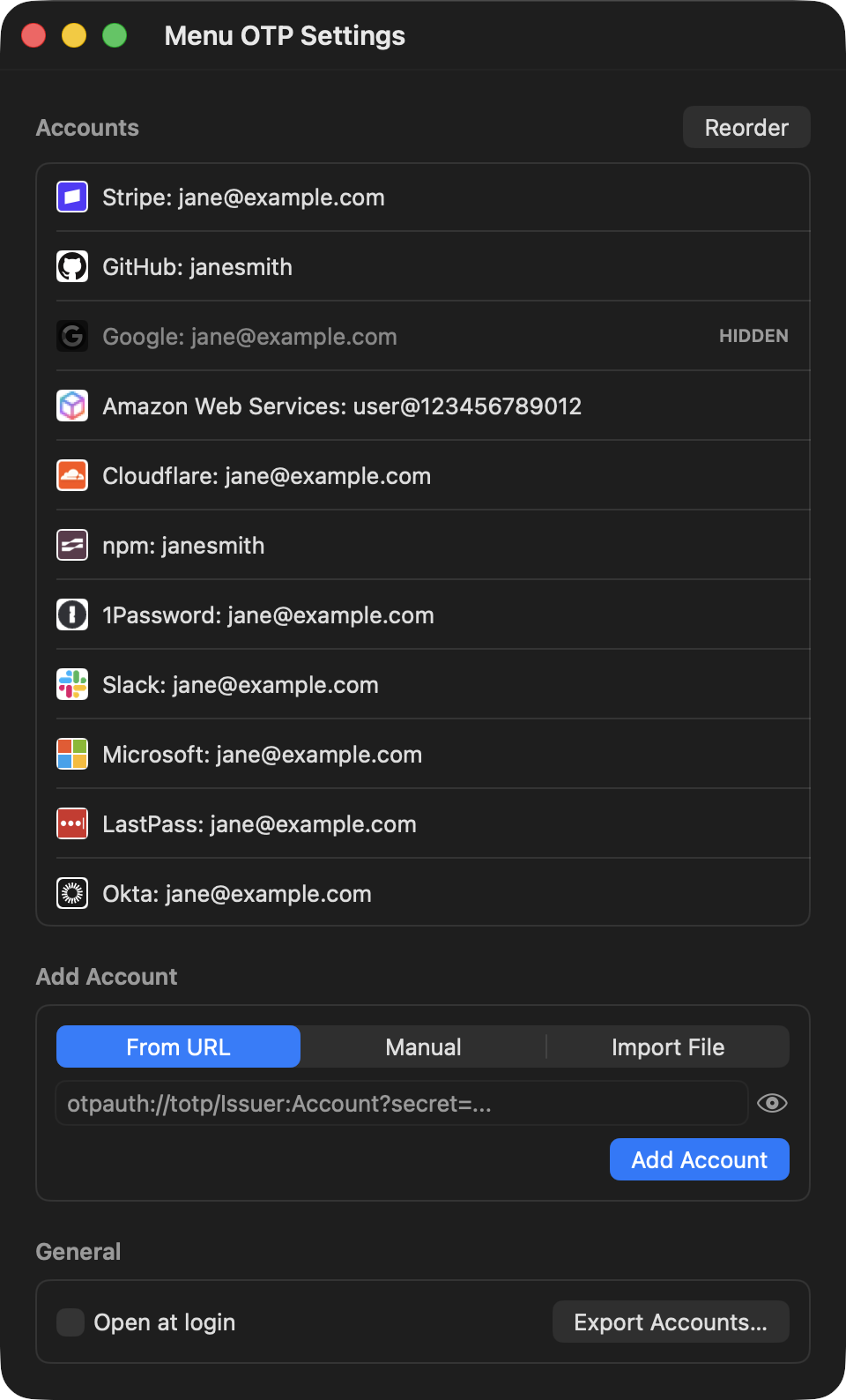
Click the Menu OTP icon in the menu bar and choose Menu OTP Settings.... The Add Account section has three tabs:
otpauth://totp/ URL, like the one encoded in a setup QR code.otpauth:// URL per line. Menu OTP reports how many accounts were added, updated, and skipped.Accounts are matched by issuer and account name, so adding one you already have updates it instead of creating a copy. Imports keep any icon you already chose. A secret that isn't valid base32 is refused when you enter it, rather than failing later when you copy a code.
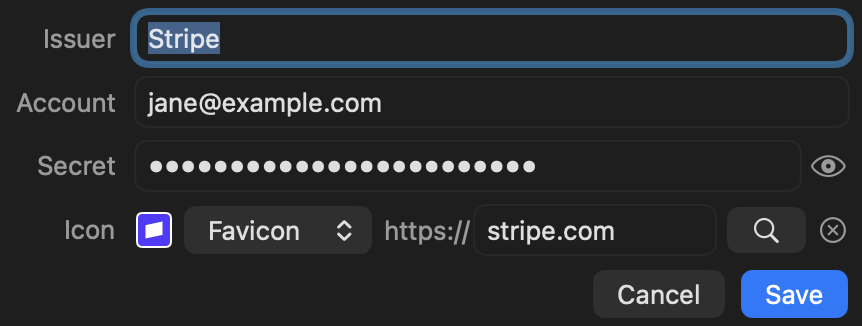
Secrets are masked as you type or edit them, and so is the From URL field, since the URL contains the secret. Click the eye button beside a field to see what's in it.
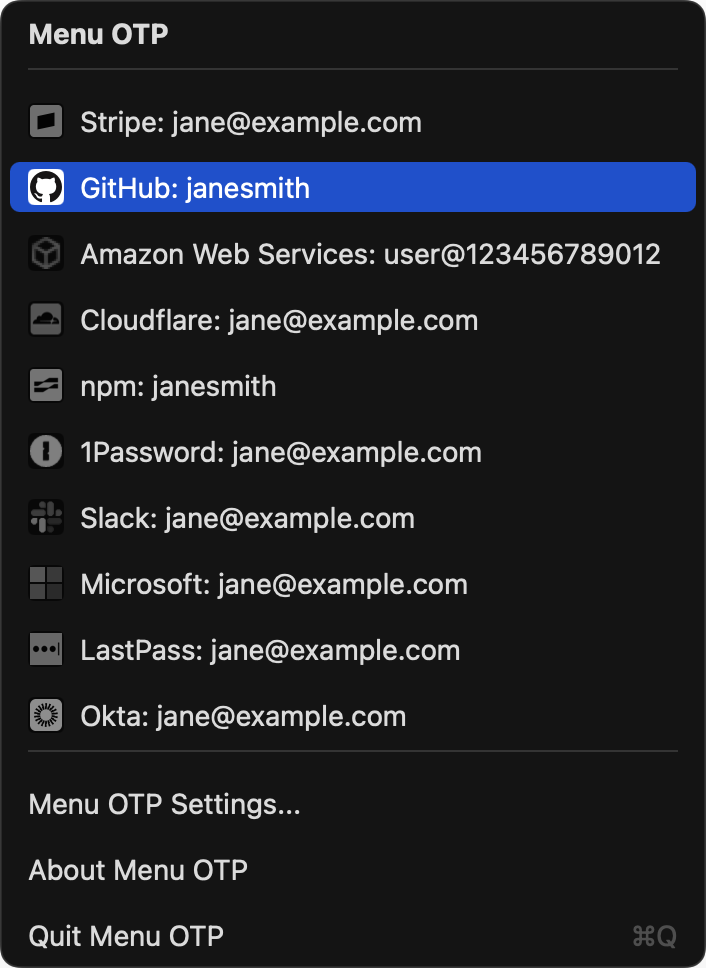
Click an account in the menu. Its code is copied to the clipboard, and the menu shows the issuer and code in large type until you click somewhere else. For the next minute, the top of the menu shows which account you copied last. Codes are marked as sensitive on the clipboard, so clipboard managers that honor that don't keep them.

With the menu open, Up Arrow and Down Arrow move the highlight, Return or Space copies, and Esc closes it. Command-Q quits, or use the Quit Menu OTP item at the bottom of the menu. About Menu OTP, just above it, shows the version and build number and the license.
If you add an account without choosing an icon, Menu OTP guesses the service's website from what you entered and fetches its icon. Any account still missing an icon is filled in the next time the app starts, or right away with Find Missing Icons, which appears in Settings whenever an account has no icon.
To fix a wrong or missing icon, point at the account in Settings and click its pencil button. With Favicon selected, type the service's website and the icon is looked up as you type. Choose Emoji to open the macOS emoji picker instead.
In the menu, icons stay grey until you point at an account, then show in full color.
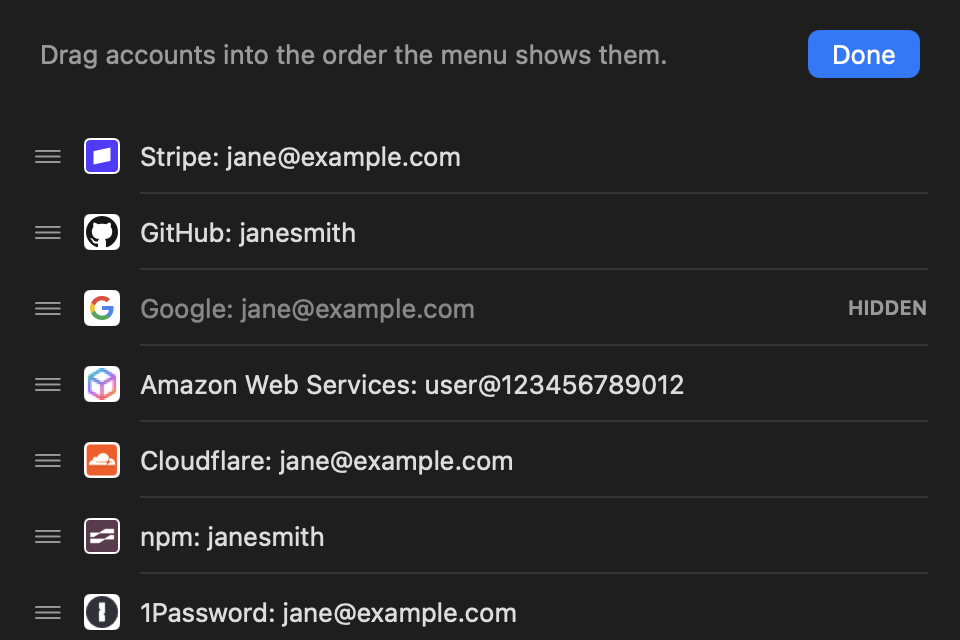
Click Reorder above your accounts, drag them into the order you want the menu to show them, then click Done. Point at an account to show its buttons: the eye hides it from the menu (it stays in Settings marked Hidden), the pencil edits it, and the trash deletes it, after asking.
Turn on Open at login to start Menu OTP with your Mac. It lives in the menu bar and only appears in the Dock while Settings is open. If its menu bar icon is ever out of reach, hidden behind the notch for example, open Menu OTP again from Finder or Spotlight to bring up Settings.

Export Accounts... saves every account to a text file, named menu_otp_export.txt unless you choose another name, with one otpauth:// URL per line. That's the format Import File reads, and one most authenticator apps accept, so it works as a backup or for moving to another Mac. Icons and hidden settings aren't included.
The file holds your secrets unencrypted, so Menu OTP asks before writing it. Anyone who can read it can generate your codes. It's saved readable by your user account only, but keep it somewhere safe and delete it when you're done.
Accounts are saved to one file on your Mac, encrypted with AES-256. The key is kept in your login Keychain. The only network requests Menu OTP makes are icon lookups, which send a website name to DuckDuckGo's icon service, and to Google's only when DuckDuckGo has no icon for it. Secrets are never sent anywhere.
Menu OTP generates standard TOTP codes: 6 digits, a new code every 30 seconds, using SHA-1. Accounts set up for 8 digits, a different interval, another algorithm, or counter-based (HOTP) codes won't work.
Menu OTP is the native rewrite of Easy OTP. The two are separate apps with their own data and can run side by side. To bring accounts over, import a file of their otpauth:// URLs.